|
Contained in many of the KipwareM® menus is our new AUTO-CHAMFERING option. This option gives users the ability to easily create chamfering toolpaths for the menu selected. Users can SAVE chamfering tool and cutting parameters but can also change them on the fly by simple pressing the button with the chamfer tool icon on the form (if available) as illustrated below.
.jpg)
After selecting that icon ... the form below will be displayed.
.jpg)
Some explanation of the fields is below :
ANGLE : this is the angle of the chamfer tool as illustrated ... ANGLE (A)
O.D. : this is the largest diameter of the chamfer tool as illustrated. This dimension will be used for hole type chamfering to auto determine if a PLUNGING or CIRCULA MILLING type toolpath should be generated. If this O.D. is greater than the hole diameter ... a drilling or plunging toolpath will be generated. If the hole diameter is greater than this O.D. ... a circular milling toolpath will be generated.
RPM : the RPM for this tool type to be used in the G code output.
FEEDRATE : the feedrate in inches per minute or mm per minute for the tool described.
LENGTH : this should be the length desired for the chamfer as illiustrated.
DEPTH OF CUT : this is the depth of cut in the Z axis to be used to obtain the length L.
TYPE of CUTTING : select the type of cutting ... CLIMB milling or CONVENTIONAL milling to be used for the toolpath.
CUTTER COMPENSATION : if G41 / G42 (cutter compensation codes) are desired in the output ... make a selection and input an offset # to be generated in the G code. KipwareM® will auto create all start-up and cancel moves automatically. If no cutter comp is to be employed ... select that option. NOTE : the toolpath generated will refclect the centerline of the tool as with all KipwareM® conversational output for cutter compensation ... offset values entered at the machine in the offset table should be entered accordingly.
SAVE : pressing the SAVE button will cause the current inputs to become the default settings.
NOTES FOR CREATING CHAMFERING TOOLPATHS :
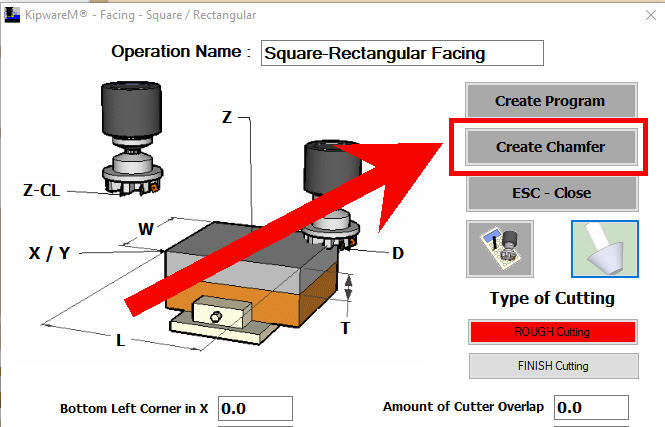
a)Pressing the CREATE CHAMFER button will cause KipwareM® to create the G code toolpath and place the chamfering cycle into the tree. The name of the cycle will be auto generated using the current OPERATION NAME with the phrase CHAMFERIING inserted at the start of the name.
b)It is not necessary to generate a PROGRAM first in order to generate a CHAMFERING program. As long as sufficient information has been entered into the form ... pressing CREATE CHAMFER can be used to generate just a chamfering G code program. For example ... to say the desired chamfering toolpath is to chamfer holes on a bolt circle. You can simply open the ROUND POCKET menu ... create the hole locations and input all appropriate Z field information (top curface coordiinate, cleance plane, hole diameter, etc.) the press CREATE CHAMFER and a G code chamfering toolpath would be created and the cycle placed in the tree.
|